Your iPad or Android tablet as a second monitor for Windows
Lanvas is a Windows app that turns an iPad or an Android tablet into a wireless second monitor over your home Wi-Fi. Run one exe on the PC, scan a QR code with the tablet, and the Windows desktop extends onto it. The tablet side runs in the browser, Safari on iPad or Chrome on Android, so there is nothing to install on the tablet, no account and no cloud.
Lanvas for Windows
One exe for 64-bit Windows 10 and 11, working with iPad in Safari, Android tablets in Chrome and other tablets with a modern browser. Free and Pro
How it works
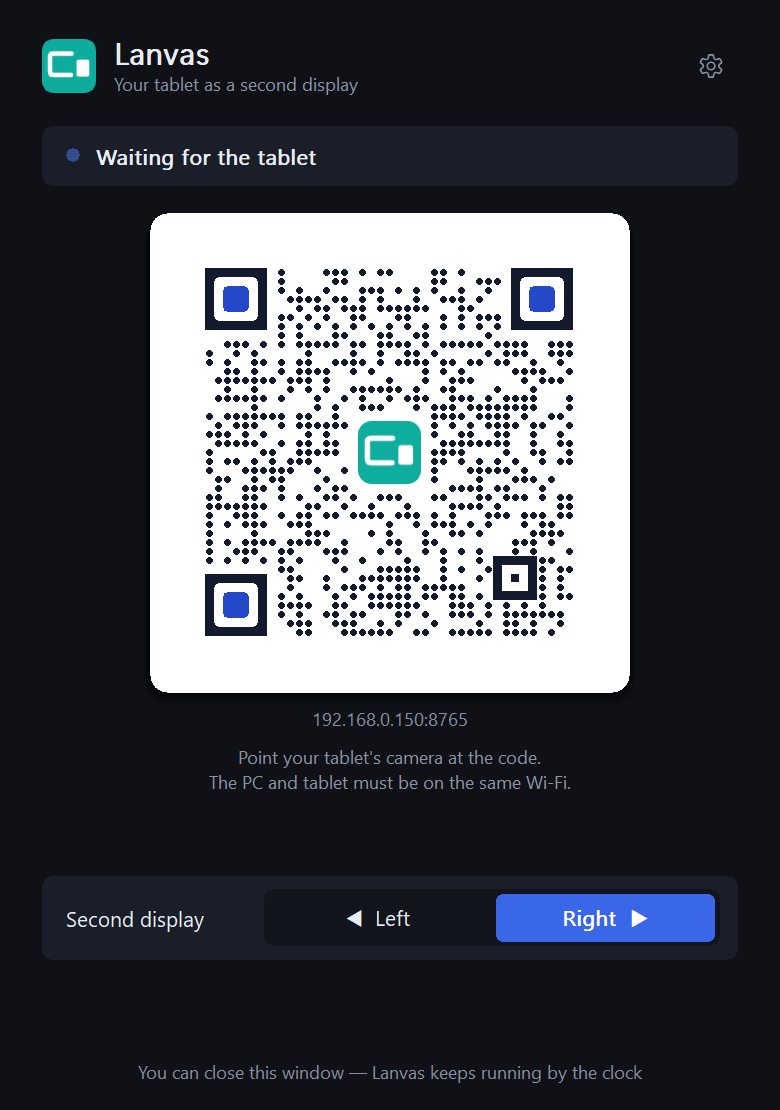
- Run Lanvas on the PC. Start
lanvas.exe. The first time, Windows asks once for administrator rights to add the virtual display. - Scan the QR code. Point the tablet's camera at the code in the Lanvas window. The Lanvas page opens in the browser: Safari on iPad, Chrome on an Android tablet. The PC and the tablet must be on the same Wi-Fi.
- Drag windows across. The tablet becomes a display to the left or right of your main screen. Move windows onto it as you would onto any monitor.
What you get
A real second display
The desktop is extended, not mirrored. Windows sees one more monitor, and the tablet's screen size and rotation are matched automatically.
Low delay
Typically about 25–30 ms from the PC screen to the tablet on a home Wi-Fi, up to 60 fps with Pro (measured on a laptop with an RTX 4080).
Any graphics card
Hardware H.264 encoding on NVIDIA, AMD and Intel. Without a hardware encoder, Lanvas uses the encoder built into Windows.
Nothing to install on the tablet
Lanvas runs in the browser. Optionally add it to the Home Screen: the icon opens it full screen and reconnects without scanning again.
iPad and Android tablets
Made and tested first on iPad with Safari. Android tablets open the same page in Chrome, which plays the H.264 video over WebRTC; the page has its own Add to Home screen steps and keep-awake for Android.
Copes with real Wi-Fi
On a weak connection the bitrate drops by itself and comes back when the link is clean. The page reconnects after Wi-Fi drops, sleep or an IP change.
Private by design
The picture goes straight from your PC to your tablet over the local network. No account, no cloud servers, no telemetry. Lanvas Pro checks its key online about once a day; Lanvas Free and the trial make no network calls.
The real pointer
The tablet shows the Windows pointer as it is: hand over links, text cursor, resize arrows.
Game mode (Pro)
While a fullscreen game runs on the main screen, the tablet drops to 30 fps and Economy quality so the game keeps more of the PC.
Same screen on up to 4 tablets (Pro)
Up to 4 tablets at once, all showing the same second screen. A separate display for each tablet is not available. Lanvas Free shows it on 1 tablet at a time.
7 days of Pro to try
The first time Lanvas runs on a PC, you get 7 days of full Pro. The trial itself works offline, with no card and no account.
Free and Pro
There are two editions. Lanvas Free has no time limit and no expiry date. The first time Lanvas runs on a PC, you get 7 days of full Pro. The trial itself works offline, with no card and no account. Then Lanvas continues as Lanvas Free unless you add a Pro key.
| Feature | Free | Pro |
|---|---|---|
| Frame rate | 30 fps | Up to 60 fps |
| Display size | Normal (follows the tablet) | Normal, Large (bigger text), any fixed resolution, iPad home-screen app sizes |
| Tablets | 1 at a time | Up to 4 at once, all showing the same second screen |
| Game mode | No | Yes |
| “Lanvas Free” mark on the tablet | Small mark at the top | None |
| Hardware encoding, quality settings, Left/Right, no time limit | Yes | Yes |
Lanvas Pro, $14.99 one-time
All 1.x updates included. Pay once, no subscription, no account.
Payment is handled by Dodo Payments, our reseller and merchant of record; any sales tax or VAT for your country is shown at checkout. Your key appears on screen right after paying, and a copy is sent to the email you used.
14-day refund, no questions asked. A refunded key stops working.
Pro checks the key online about once a day and needs internet at least once every 30 days.
Activating Pro takes one step: in Lanvas, click Get Pro at the top of the window (or Get Lanvas Pro… in the tray menu), copy the key and click Paste key from clipboard.
Lanvas at a glance
- Status: released.
- PC: 64-bit Windows 10 or 11, any graphics card (NVIDIA, AMD, Intel) or none.
- Tablet: iPad with Safari; Android tablets with Chrome; other tablets with a browser that plays H.264 video over WebRTC.
- Connection: your local network only (Wi-Fi or Ethernet on the PC). Video, input and sound never leave it. Lanvas Pro checks its key online about once a day and needs internet at least once every 30 days.
- Delay: about 25–30 ms from PC screen to tablet on home Wi-Fi.
- Frame rate: 30 fps in Free, up to 60 fps in Pro.
- Tablets: 1 at a time in Free; up to 4 at once in Pro, all showing the same second screen.
- Video: H.264, hardware encoded where the PC can.
- Price: Free edition with limits and no time limit; Pro $14.99 one-time with all 1.x updates.
- Trial: 7 days of full Pro the first time Lanvas runs on a PC, offline, with no card and no account.
- Languages: English and Russian.
- Account, cloud, telemetry: none.
Lanvas, spacedesk and Duet Display
Three ways to use a tablet as a second monitor for Windows, from each maker's own pages and app store listings, checked on 8 November 2026. Prices and terms can change, so check theirs before you choose.
| What | Lanvas | spacedesk | Duet Display |
|---|---|---|---|
| Price | Free edition; Pro $14.99 one-time | No charge for non-commercial private use; paid licence for business use | Monthly or yearly subscription |
| On the tablet | The browser: Safari on iPad, Chrome on Android | A viewer app (Android, iOS, Windows) or the HTML5 viewer | The Duet app (iPad, Android) |
| Connection | Local network only | USB, Wi-Fi or LAN | See the Duet site |
| Computer | Windows 10 and 11 | Windows | Windows and Mac |
Questions
Where do I download Lanvas?
On this page: the Download for Windows button gives the latest Lanvas.exe. It is one exe with no installer. Questions are welcome at support@bluecheddar.app.
Can I use an iPad as a second monitor for a Windows PC?
Yes, with an app like Lanvas. Windows has no built-in way to use an iPad as a display, and Apple's Sidecar works only with a Mac. Lanvas adds a virtual monitor to Windows and shows it on the iPad over your Wi-Fi.
Can I use an Android tablet as a second monitor for Windows?
Yes, in Chrome. Lanvas sends the second screen as H.264 video over WebRTC, which Chrome on Android plays, so the Android tablet needs no app, only a current Chrome on the same Wi-Fi as the PC. Lanvas was made and tested first on iPad, and Android tablets differ in their video decoders, so try yours during the 7-day Pro trial before buying.
What does an Android tablet need?
A current version of Chrome and the same Wi-Fi network as the PC. If the camera app opens the QR link in another browser, open it in Chrome. To keep the screen on, Lanvas uses the browser's wake lock; where that fails, the page points you to Settings → Display → Screen timeout.
How is Lanvas different from a remote desktop app?
A remote desktop app shows a screen the PC already has. Lanvas gives the PC an extra screen, so the desktop extends onto the tablet and your main monitor keeps its own windows. The picture also stays on your local network instead of going through a cloud relay.
How is it different from second-screen apps that use a cable or a tablet app?
Lanvas works over Wi-Fi in the tablet's browser, so there is no cable and nothing to install on the iPad or Android tablet. A USB cable can give a steadier picture when the Wi-Fi is weak, so if your Wi-Fi is poor, try Lanvas on it during the 7-day Pro trial first.
The tablet can't connect. Is my Wi-Fi the problem?
Most often Windows treats your home network as Public. On a Public network the Windows firewall keeps the tablet out, and Lanvas allows connections only on Private (home or work) networks on purpose. Lanvas shows a hint in its window with an Open button: set the network to Private in Settings → Network & internet → Wi-Fi → your network. Also check that the PC and the tablet are on the same Wi-Fi and that a VPN is not running. More in Support.
Which tablets work?
iPad with Safari and Android tablets with Chrome. iPad is the one Lanvas was made and tested on first; on Android, Chrome is the browser to use. Other devices whose browser plays H.264 video over WebRTC, such as a phone or another computer, can open the page too. No app is installed on the tablet, so the only requirement is a current browser on the same network. The 7-day Pro trial on your own tablet is the best check before buying.
Is Lanvas an alternative to spacedesk?
Yes, with a different trade-off. spacedesk costs nothing for non-commercial private use and needs a paid licence for business use, and works over USB, Wi-Fi or LAN, with viewer apps for Android, iOS and Windows and an HTML5 viewer. Lanvas works only over the local network, in the tablet's browser, with a Free edition and a one-time Pro. Both extend the Windows desktop; which suits you depends on your tablet and your Wi-Fi.
Is there a Duet Display alternative without a subscription?
Lanvas is one: Lanvas Pro is a one-time $14.99 with all 1.x updates, and Lanvas Free costs nothing. Duet Display's paid plans are sold as monthly or yearly subscriptions and use the Duet app on the tablet; Duet also runs on a Mac, which Lanvas does not. Lanvas needs only a browser on the tablet and works only with Windows.
Is there a trial of Pro?
Yes. The first time Lanvas runs on a PC, you get 7 days of full Pro. The trial itself works offline and needs no card and no account. After 7 days Lanvas continues as Lanvas Free, with no time limit, unless you activate a Pro key.
How much does Pro cost?
$14.99, paid once, with all 1.x updates included. 14-day refund, no questions asked; a refunded key stops working. Any sales tax or VAT for your country is shown at checkout.
Can I use more than one tablet?
With Pro, up to 4 tablets at once, all showing the same second screen. Lanvas adds one virtual display, so a separate display for each tablet is not available. Lanvas Free shows the second screen on 1 tablet at a time.
Which Windows versions are supported?
64-bit Windows 10 and Windows 11. On the first start Windows asks once for administrator rights to install the virtual display driver; after that Lanvas runs as a normal app.
I have Windows “N” edition. Anything to know?
If your PC has no hardware video encoder, Lanvas uses the H.264 encoder built into Windows. Windows N editions ship without it: install the Media Feature Pack from Microsoft (Settings → Apps → Optional features). PCs with a hardware encoder on the graphics card do not need it.
Does Lanvas need the internet?
Not for the second screen. The PC and the tablet talk directly over your local network, and video, input and sound stay on it. Lanvas Free and the trial make no network calls at all. Lanvas Pro checks its key online about once a day (one HTTPS request to bluecheddar.app with the order number, a random number and an anonymous PC code, nothing else) and needs internet at least once every 30 days; otherwise Pro pauses until it can check. Buying Pro and downloading Lanvas also happen online.
What does Lanvas send about me?
Nothing. There is no telemetry, no analytics and no account. Lanvas keeps a log on your PC for troubleshooting (%LOCALAPPDATA%\Lanvas\lanvas.log), and it stays there unless you choose to send it to us. Details in the Privacy Policy.
Can I get a refund for Pro?
Yes. Within 14 days of purchase you get a full refund, no questions asked. See the Refund Policy.
Can I use one Pro key on more than one PC?
Yes, on the computers you personally use. The key is tied to you, not to one machine. See the License Agreement.
Help and policies
- Support: connection problems, log files, a lost key and how to reach us.
- License Agreement: what the Free and Pro licenses allow.
- Privacy Policy: what the app keeps on your PC and what a purchase shares.
- Refund Policy: 14 days, no questions asked.
- Third-party licenses: the open-source parts of
lanvas.exe.
Who makes Lanvas
Lanvas is made and sold by Individual Entrepreneur Roman Pastushenko, registered in Georgia with the National Agency of Public Registry, and published here on bluecheddar.app. Payments, refunds and taxes are processed by Dodo Payments as merchant of record. Contact: support@bluecheddar.app.